Employee Portal
Everything employees need for the working day, in one place.
Schedule, time, leave, messages and team information without chasing a manager.
The Employee Portal is the employee-facing side of Timento. It runs on the phone people already carry, so the answers they need are one tap away instead of one conversation away.
30 days · Up to 4 employees · No credit card · Personal onboarding
One place for the working day
The information exists. It is just spread across five different places.
The schedule is a photo in a group chat. Leave goes by email. Hours live in another tool. Important updates scroll away. And when someone is unsure, they ask the manager again.
How it usually works
- A photo of the schedule in a group chat
- Leave requests by email or in person
- Clocking in a separate system
- Announcements that scroll out of view
- The same questions to the manager every week
Employee navigation
- Home
- Schedule
- Clock
- Message
- Team
Quick navigation
- Leave
- Availability
- Open Shifts
- Checklists
- Knowledge Hub
- Notifications
Five clear places at the bottom of the screen, with quick navigation for everything else. Employees do not need training to find their own working day.
Home
Open the app, see today.
Home answers the first question an employee has: what is happening today, and what do I need to do about it.
Today's Shift
Start, end and where to be, taken from the published schedule rather than from memory.
Quick navigation
Direct access to the actions people use most, without hunting through menus.
What needs attention
Updates and items waiting for the employee, so nothing depends on scrolling back through a chat.
Home is deliberately short. It is a starting point for the day, not a dashboard to study.
My Schedule
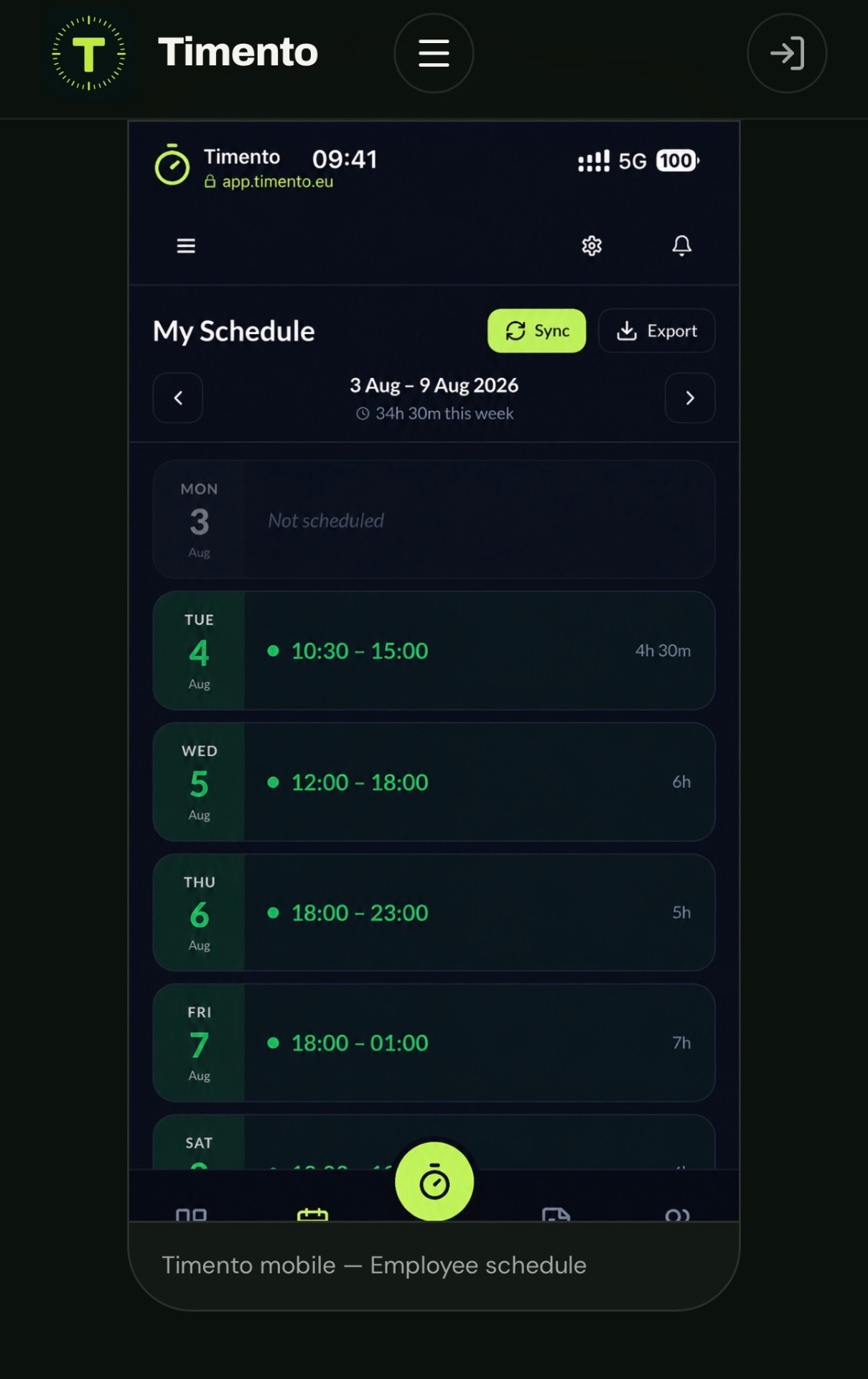
Your shifts, always the published version.
Employees see their own upcoming shifts with times and location, in a view built for a phone screen. When the schedule changes, the portal shows the current version instead of an old screenshot.
- Upcoming shiftsTimes, dates and location for the shifts that belong to this employee.
- Always currentThe portal shows the published schedule, so there is only one version in circulation.
- Change visibilityWhen something is republished, employees are notified rather than left to notice it.
Calendar Export
Employees can take their shifts into a compatible calendar application through an iCalendar (.ics) file or a subscription link. This is one-way calendar consumption: the schedule can be read in the calendar, but it cannot be edited there. Timento stays the source of truth.
One published schedule, visible to the people who work it.
Clock In · Breaks · Clock Out
Start the shift, register breaks, clock out.
Time registration happens where the work happens. The employee starts the shift on their own device, registers breaks during the day and clocks out at the end, and those registrations become the hours managers review.
- Clock In
- Break start
- Break end
- Clock Out
- Hours ready for review
Kiosk Mode
Where personal phones do not fit the workplace, a shared company device can be used with Kiosk Mode. Kiosk Mode is a company clocking mode on a shared device, not the personal Employee Portal.
Location-based Clocking
Where it is enabled, a clock action can be verified against a configured workplace. It confirms that a clock in or clock out happened at the right place. It is not continuous tracking, and it does not follow employees during the day.
Employees see their registered hours instead of counting them back from memory at the end of the month.
Availability and leave
Say when you can work. Request the days you need off.
Both start with the employee, and both end up in the planning picture. Timento keeps them separate, because they answer different questions.
Availability
When someone can normally work
Employee input about working availability. It is planning context for the planner, not a request that needs a decision.
- Entered by the employee in the portal
- Describes normal working availability
- Kept current without sending messages
- Used as context while the schedule is built
Leave
A request for time away
A specific request for dates away from work, submitted in the portal and reviewed by a manager.
- Submitted with dates and context
- Reviewed by a manager
- Approved or rejected, with the employee notified
- Approved leave is visible in planning
Availability tells the planner who could be scheduled. Approved leave tells the planner who must not be scheduled.
Open Shifts and Shift Swaps
Flexibility for employees, control for the manager.
When a shift needs coverage, or when life gets in the way of one that is already planned, the portal gives employees a structured route instead of a private arrangement nobody else sees.
See Open Shifts
Shifts published as open become visible to the employees who could take them.
Respond, do not self-assign
An employee shows interest or accepts where allowed. Nothing is assigned automatically.
Propose a swap
An employee can ask a colleague to take over a shift instead of arranging it outside the system.
Manager decides
The manager keeps oversight and confirms the result, so the published schedule stays the schedule everyone works from.
Employees get a way to solve things. Managers keep the final word.
Messages and notifications
Two different things, kept apart on purpose.
A team announcement and an automatic schedule update are not the same, and mixing them is how important information disappears. Timento separates communication between people from updates triggered by workforce events.
Messages
Communication between people and teams
Messages carry announcements, team updates and questions. Where it is enabled, employees can reply, confirm they have read something, and start a team message themselves. Message sits in the bottom navigation of the employee experience.
- Announcements
- Replies
- Acknowledgement
- Employee-created messages
Notifications
Updates triggered by workforce events
Supported notification types are delivered in-app and as push notifications on the mobile employee experience. Examples include a published or changed schedule, an open shift, a leave decision and a swap response. Employees can manage how they receive supported types. Timento does not send SMS.
- Schedule published
- Schedule changed
- Open Shift
- Leave decision
- Swap response
Action Needed
Some messages need more than a read receipt. An Action Needed message can be picked up by someone on the team, so both the team and the manager can see that it has an owner.
- Message
- Action Needed
- Reply / Acknowledge
- I'll take it
Employees can keep their own inbox tidy without removing a message from everybody else's view.
Messages are for people. Notifications are for events. Neither is a replacement for a full chat or collaboration suite.
Team
Know who you are working with.
The Team view shows the colleagues in the employee's own company and team context, so a new starter is not guessing who is on shift beside them.
- Colleagues in the same team context
- Who is working alongside them
- Birthdays, where the company enables them
This is the team around the working day, not a public employee directory. What people see follows their company, account and role.
Also in the portal
The context that belongs to the shift.
The portal is the access point. The content lives in the parts of Timento that manage it, so employees read the current version rather than a copy.
Knowledge Hub
Procedures, guides and company knowledge where enabled, opened on the device already in hand instead of looked up in a binder.
See Knowledge HubDaily Briefing
The shared picture of what matters today, for teams that use it. It gives context for the shift, it does not replace messages or checklists.
See Daily BriefingOperational Checklists
Where routines are assigned to the shift, employees work through them and complete them from the same place they clocked in.
See ChecklistsThe Employee Portal is the access point. Knowledge Hub, Daily Briefing and Checklists remain the source of the content.
Self-service reduces manager admin
The same six questions, answered without you.
Most of what a manager repeats every week is information that already exists. Self-service does not remove the manager from the process, it removes the manager from the lookup.
The question
When do I work?
Answered by
My ScheduleThe question
Can I take Friday off?
Answered by
Leave requestThe question
Can I work next weekend?
Answered by
AvailabilityThe question
Who is working?
Answered by
TeamThe question
What changed?
Answered by
Notifications and MessagesThe question
Where is the procedure?
Answered by
Knowledge HubThe question
How many hours did I work?
Answered by
Clock In · Breaks · Clock Out
Every question answered in the portal is a message a manager does not have to answer twice.
Mobile first
Built for a phone, in a pocket, between tasks.
The employee experience is used standing up, mid-shift, with one hand. Every action is short enough to finish before the next task starts.
- Simple
- Fast
- Clear
- Touch-friendly
- Focused
PWA
Timento runs as an installable web app and can be added to the home screen where the device supports it. No traditional app-store download is required.
If the employee experience is hard to use, the workforce information behind it stops being reliable.
My Settings
Personal details, kept current by the person they belong to.
Employees can view and manage the personal details their company makes available for self-service, so records stay current without an administrator retyping them.
- View and manage the personal details made available for self-service
- Emergency contact information, where the company uses it
- Notification preferences for supported update types
Some fields stay company-controlled and are not editable by the employee. What is available for self-service depends on how the company configures it.
Privacy and control
Employees see their own working day, not everybody's data.
The portal is scoped. What someone sees follows their company, their account and the role they hold, and the personal information behind the schedule stays with the people who need it.
- Access follows company, account and role
- Employees see their own shifts, hours, requests and team context
- Location-based Clocking verifies a clock action, it does not track people
- Timento is not designed to collect sensitive medical detail as part of a leave request
Timento covers the workforce operations layer. It is not a general people-data store.
Read about securityThe connected employee day
One flow, from the first tap to the last.
This is Timento from the employee side of the platform rather than from the manager dashboard.
- See Schedule
- Clock In
- Work and Briefing
- Break
- Messages and updates
- Clock Out
- Review upcoming schedule and leave
Every step creates the structured information the next step depends on.
For managers
Fewer interruptions, better data.
Self-service is not just an employee benefit. Every action an employee takes in the portal arrives as structured information instead of a message somebody has to transcribe.
Availability arrives as planning input
Instead of collecting it from a group chat each week, the planner sees it while building the schedule.
Leave requests arrive with dates
Requests land in one review flow with the context needed to decide.
Hours arrive as registrations
Clock actions become the timesheets managers review and approve, ready for payroll-ready reporting.
Updates reach the team
Publishing and notifying is one step, so the schedule everyone works from is the schedule you published.
Self-service does not mean loss of control. Approvals stay where the workflow requires them.
System boundaries
What the Employee Portal is, and what it is not.
Being clear about the edges is what keeps the portal simple enough for people to actually use.
The Employee Portal is
- The employee-facing side of Timento
- A mobile-first view of the working day
- A structured route for availability, leave, swaps and open shifts
- The access point for briefings, checklists and company knowledge
It is not
- A social network
- A full HRIS
- A payroll self-service portal
- A general collaboration or chat suite
- A native app-store application
Timento covers the workforce operations experience and connects to the systems around it where supported.
Where self-service matters most
Teams that live on their phones.
Employee self-service pays off fastest where shifts change, teams are spread out and few people sit at a desk.
- Small BusinessThe owner stops being the schedule hotline for a team of twelve.
- Growing TeamsStructure replaces the group chat once the team outgrows it.
- Multi-locationEvery location gets the same employee experience, whoever runs the site.
- RetailStore teams check shifts and swaps between customers.
- HotelsDepartments and night shifts read the same current schedule.
- EventsTemporary crews get their times and location without a briefing call.
- RecreationSeasonal staff are productive from the first shift without training on a tool.
Questions & answers
Employee Portal questions, answered
How employees use Timento on their own phone, and what stays under manager control.
What is the Timento Employee Portal?
It is the employee-facing side of Timento. Employees see their schedule, clock in and out, register breaks, submit availability and leave requests, read messages and notifications and find team information, all from one mobile-friendly place.
Do employees need to download an app?
No. Timento runs as an installable web app and can be added to the home screen where the device supports it. No traditional app-store download is required.
How do employees find their way around?
The employee navigation has five places: Home, Schedule, Clock, Message and Team. Everything else, including leave, availability, open shifts, checklists and knowledge, is reachable through quick navigation.
Can employees add their shifts to a personal calendar?
Yes. Shifts can be exported as an iCalendar (.ics) file or added through a subscription link in a compatible calendar application. This is one-way calendar consumption: the schedule can be read there, but it cannot be edited from the calendar. Timento stays the source of truth.
How does clocking work in the portal?
The employee clocks in, registers breaks and clocks out from their own device, and those registrations become the hours a manager reviews. Where a shared workplace device fits better, Kiosk Mode can be used instead. Where it is enabled, a clock action can be verified against a configured workplace, which confirms the place of the clock action and is not continuous tracking.
Can employees change their own schedule?
No. Employees can respond to Open Shifts and propose a Shift Swap, but nothing is assigned automatically and the manager confirms the result. The published schedule stays the schedule everyone works from.
What is the difference between messages and notifications?
Messages are communication between people and teams, including announcements, replies, acknowledgement and Action Needed items someone takes responsibility for. Notifications are updates triggered by workforce events, delivered in-app and as push notifications for supported types. Timento does not send SMS and is not a replacement for a full chat suite.
What can employees see about other people?
Access follows company, account and role. Employees see their own shifts, hours and requests, plus the colleagues in their own team context and birthdays where the company enables them. It is not a public employee directory.
Give employees clarity. Give managers their week back.
Try Timento for 30 days with up to four employees and see what changes when the team can answer their own questions.
30 days · Up to 4 employees · No credit card · Personal onboarding