Build faster
Reuse the way your team normally works.
Templates, recurring shifts and previous schedules reduce repetitive planning.
Scheduling
Build clear schedules, reuse the way your team normally works and spot availability, leave and staffing issues before you publish.
From the first draft to the final shift notification, everything stays connected.
30 days · Up to 4 employees · No credit card · Personal onboarding
Build faster
Templates, recurring shifts and previous schedules reduce repetitive planning.
Catch problems early
Availability, leave, overlapping shifts and staffing information help managers identify problems before publishing.
Keep everyone updated
Schedules and changes flow into the employee experience.
Less admin
Planning becomes slow when managers have to rebuild shifts, check availability, remember leave, watch working hours and communicate every change manually. Timento brings those decisions into one connected planning workflow.
Before
With Timento
Build
Start from a template, reuse an existing week or build the schedule from scratch. Timento gives managers different ways to plan without forcing every business into the same workflow.
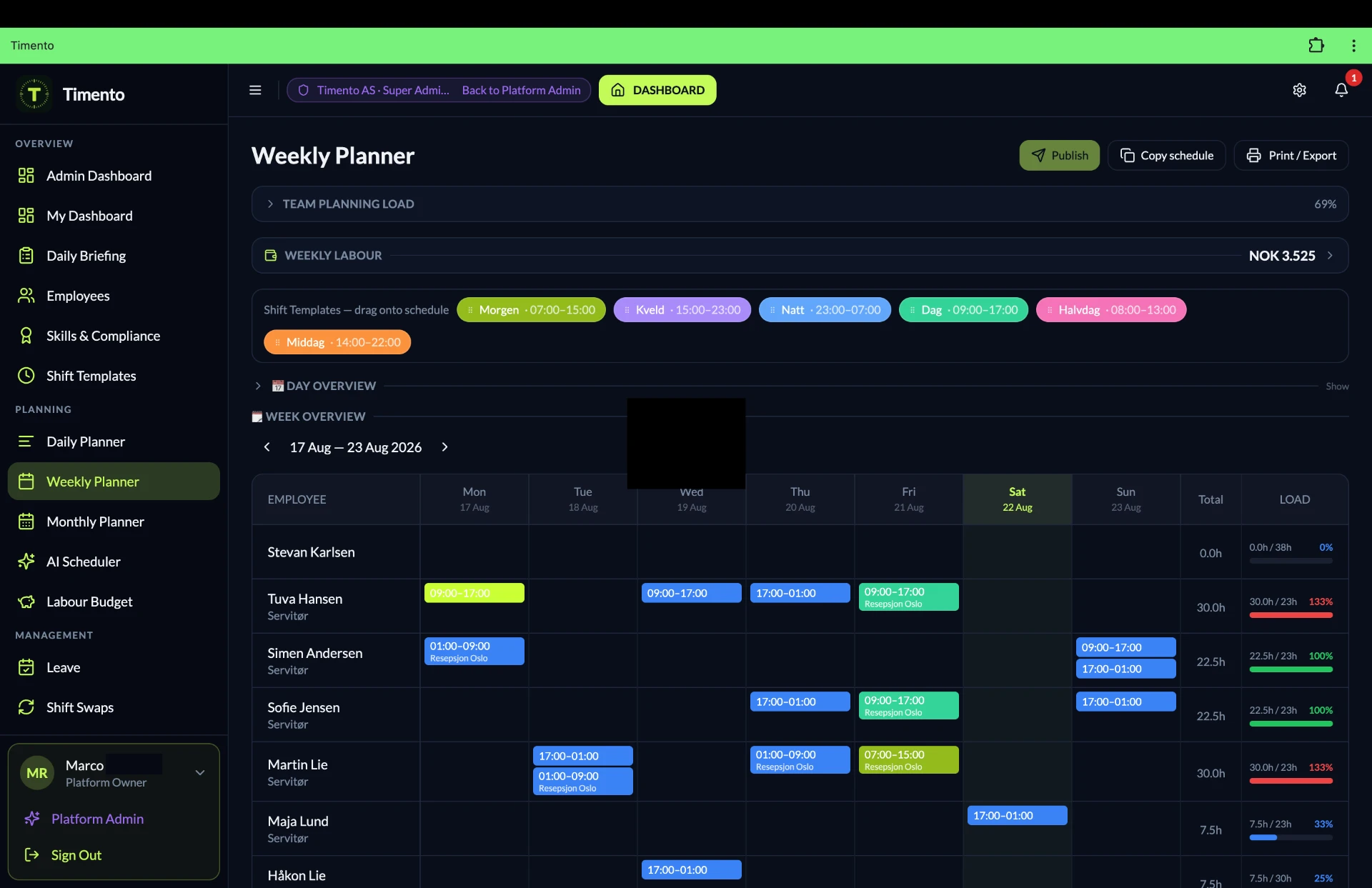
Plan the complete team across the week.
See staffing and shifts across a single operational day.
Get a broader view of upcoming staffing.
Save recurring shift structures instead of rebuilding them.
Repeat predictable work patterns.
Reuse an existing schedule as the starting point for the next one.
Create shifts that can be filled later.
Plan around the role required instead of immediately assigning a specific employee.
Check
A schedule is only useful if it can actually work. Timento helps surface issues while the schedule is still a draft.
These are warnings and planning information, designed to support the manager's decision. Timento highlights what looks wrong in the draft , it does not certify or guarantee compliance with labour law.
Plan against the business, not just the calendar
Building a schedule is more than filling a grid. Timento helps managers compare the plan against staffing needs, keep contract hours balanced and jump straight to what still needs attention.
Schedule for what the business needs, not just who is available. Compare Staffing Requirements with the schedule being built.
Balance the workforce before you publish. See at a glance who is under-scheduled, on target or over-scheduled against their Contract Hours.
Under-scheduled · 85%
On target · 99%
Over-scheduled · 115%
Scheduled hours are the starting point for Planned Labour Cost , see Payroll & Reporting for the full financial picture.
Don't search the schedule for problems. Filter straight to what needs attention.
Workflow
Create the schedule using templates, recurring shifts, roles or individual employees.
Timento evaluates the draft against relevant scheduling information.
Managers review conflicts and warnings before committing the schedule.
Publish the final schedule to the team.
Employees see their updated shifts through their Timento experience.
Planning views
The same schedule, seen from the angle the decision needs. Switch between week, day and month without leaving the planner.
Lay out the whole team across seven days, spot thin coverage and move shifts until the week works.
See the day as a timeline: who starts when, where the overlaps sit and which hours are thinly covered.
Review upcoming weeks, leave and recurring patterns before you commit to the detail.
Connected people data
Availability and leave shouldn't live in separate conversations. Timento brings employee information into the scheduling process so managers can make better decisions before assigning shifts.
Employees submit when they can work; the planner shows it while you schedule.
Requests are handled in Timento instead of chat messages and notes.
Approved absence is visible in the planning view and flagged when it conflicts.
See how many people are planned against the hours you need to cover.
Plan around the roles a shift requires, then assign the right person.
Flexibility
Managers create work that still needs someone assigned. Employees see the available shifts in the employee experience , delivered in-app and as a push notification , so gaps get filled without a round of phone calls.
Employees can request a shift change, and the swap only takes effect once it has been approved.
Flexibility for employees. Visibility and control for managers.
Publish
Publish & Notify closes the loop: the schedule reaches the team in-app and as a push notification, and later changes are notified the same way. From there, Calendar Export lets employees take their shifts into the calendar they already use , Smart Scheduling → Publish & Notify → Employee Schedule → Calendar Export.
Mobile
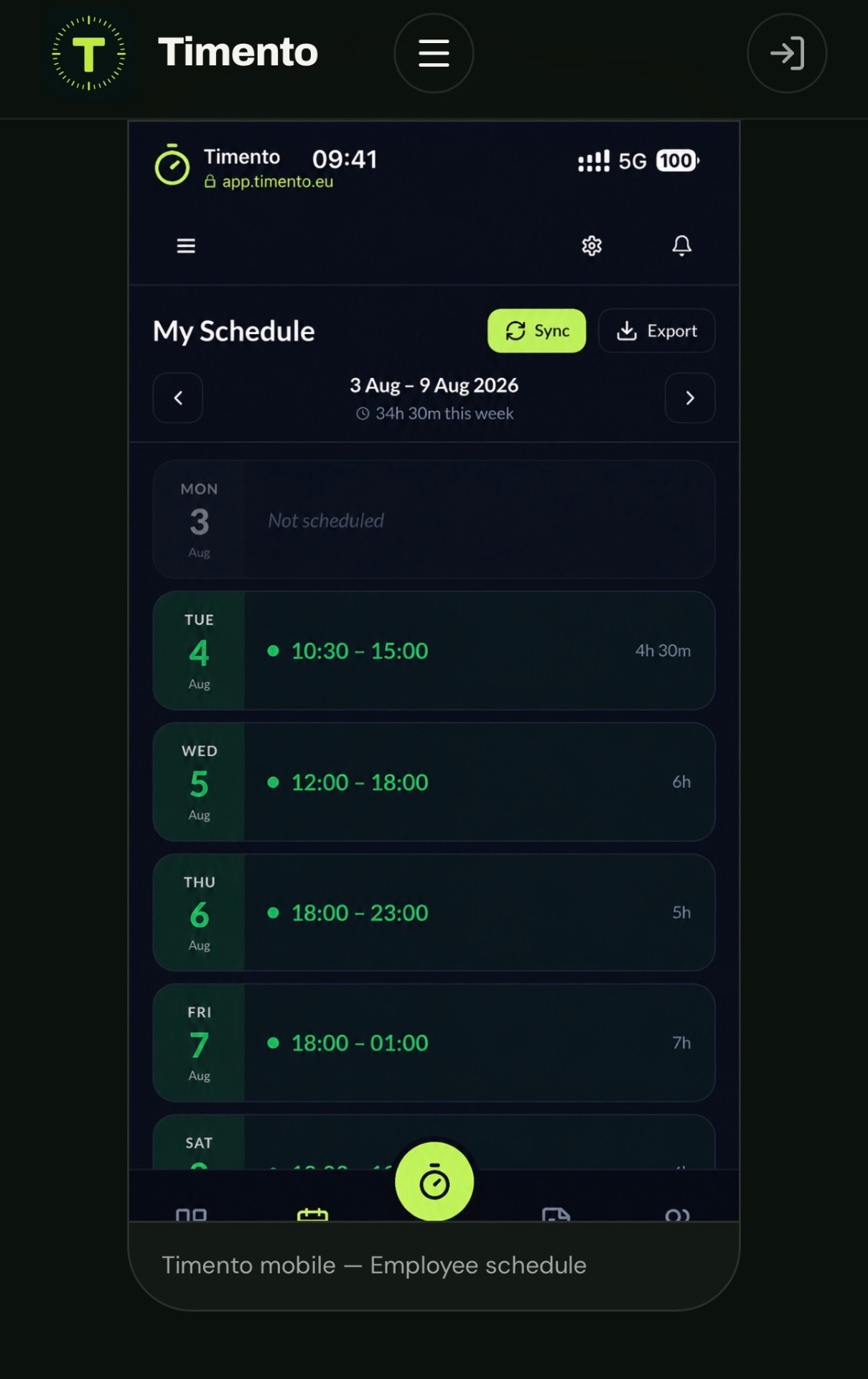
Employees can check upcoming shifts from the same mobile-friendly Timento experience they use for time, breaks, leave and daily work.
AI Copilot
Use AI-assisted recommendations to help identify scheduling opportunities, potential issues and better ways to organise the working week.
AI CopilotAI Copilot is an optional add-on and is not automatically included in every plan.
Built around your operation
Scheduling works differently across industries. Timento gives businesses one connected planning platform that can reflect the roles, routines and staffing patterns of their operation.
These are not separate versions of Timento. Same platform, different operational setup.
One connected platform
A published shift becomes part of the working day. Timento keeps the schedule connected to time, breaks, operational work, approvals and payroll-ready reporting.
Questions & answers
Practical answers about building schedules, avoiding conflicts and keeping employees informed.
Yes. While you build the schedule, Timento checks for overlapping shifts, unavailable employees, approved leave and missing roles. Conflicts appear inline in the planner, so you can fix them before publishing instead of on the morning of the shift.
Yes. You can start from shift templates, set up recurring shifts and copy a previous week in a single action. Recurring patterns stay editable, so you can reuse the structure and still adjust individual days.
Yes. Employees can submit their availability from the employee portal, and it becomes visible in the planner while you schedule. That keeps availability part of the plan rather than a message in a separate chat.
Yes. Approved leave is shown directly in the planning view, and scheduling someone who is on approved leave surfaces as a conflict. Leave requests, approvals and the schedule use the same data, so the planner always reflects the current situation.
Yes. Published schedules are available to employees in the mobile-friendly employee portal, including their upcoming shifts and any changes made after publishing. Employees only see the information relevant to their role and location.
Shift swapping between employees with manager approval is in development. Today, changes are made by a manager in the planner and published to the team, so the schedule of record always reflects what was approved.
Yes. Timento surfaces overtime risk and staffing gaps while you plan, based on the hours you are about to assign. You see the cost of a change before publishing rather than discovering it in the payroll report.
Yes. After Publish & Notify, employees see their shifts in the Timento employee portal and can use Calendar Export to take them further: the schedule is exported in the standard iCalendar (.ics) format, as a file or a subscription link, and added to a compatible calendar application such as Google Calendar, Apple Calendar or Microsoft Outlook. This is export, not automatic two-way synchronisation.
Try Timento for 30 days with up to four employees and see how scheduling connects with the rest of your working day.
30 days · Up to 4 employees · No credit card · Personal onboarding